Getting Started
What You Need
A phone running Android 7.0 or newer with Locus Map and the Pebble App.
A Pebble Time 2 or Pebble Round 2.
The TrackGlance Android Bridge APK and watch PBW from the same release.
Download the matching APK and PBW from the latest TrackGlance release. Install the Android Bridge on the phone, install the PBW through the Pebble App, open Locus Map once, and launch TrackGlance on the watch. The Bridge status screen should report Locus as available, the watch as connected, the watchapp as open, and matching versions.
The Android Bridge Is Required
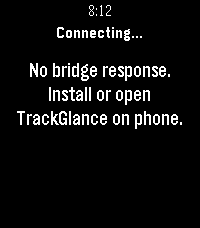
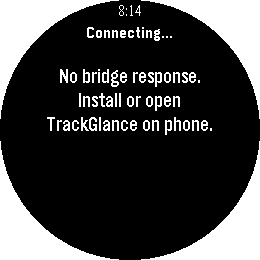
The Android Bridge carries recording information and controls between Locus Map and the watch. If the Bridge does not answer, the watch first says Connecting…. After about ten seconds it says No bridge response. Install or open TrackGlance on phone. Recording metrics and controls stay hidden.
This screen can mean that the Android Bridge is not installed or open, the phone is disconnected, or the Pebble App cannot reach the watch. Install the matching APK from the TrackGlance releases page and then open it on the phone.
|
|
Start in Locus
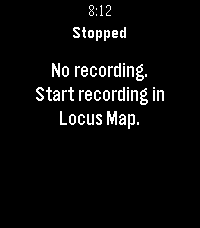
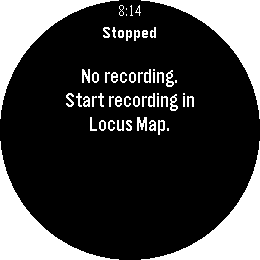
Recording is owned by Locus Map. Start the desired recording profile in Locus. While no recording is active, the watch deliberately hides all metrics and controls and says No recording. Start recording in Locus Map. Select does nothing on this screen.
|
|
As soon as Locus starts recording, the watch loads the pages for that activity. The first page is selected for every new recording. If Locus itself is unavailable, the watch gives a separate instruction to open Locus on the phone.
Automatic Activity Pages
Open Watch Settings once after installation. Every installed Locus activity receives four page slots: one active heuristic page and three inactive slots. The six initial metrics are chosen from the activity name:
walking or hiking: elapsed, distance, altitude, ascent, current speed, current HR;
running: elapsed, distance, current pace, average pace, ascent, current HR;
cycling: elapsed, distance, current, average and maximum speed, current HR;
all other activities: elapsed, distance, current and average speed, altitude, current HR.
Common walking, hiking, running, jogging, cycling and bicycle terms in every supported language are recognized. Automatic page names follow the watch language. Custom names are saved as ordinary data and are not translated when the watch language changes.
Using the Watch
During recording or pause, Up and Down switch between one to four pages and wrap at the
ends. The header always shows the state and position, for example Recording · 2/4. The page
name appears briefly after a switch. Select opens recording controls. See
User Guide for on-watch controls and Watch Settings.
If a new Locus profile has not synchronized yet, the watch shows Preparing profile.... After
15 seconds it asks you to open Watch Settings, while synchronization continues once per minute.