User Guide
On-watch operation
Start the desired activity in Locus Map. While no recording is active, the watch hides metrics and controls and says No recording. Start recording in Locus Map. If Locus cannot be reached, a separate screen asks you to open Locus on the phone. Select has no action on either screen.
During recording or pause, Up and Down move between activity pages and Select opens the available recording controls. A new recording starts on page 1.
Activity pages
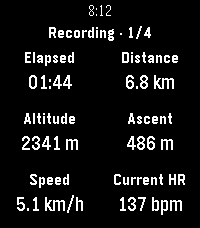
An active recording shows one page at a time. Press Up for the previous page and Down for the next; navigation wraps at both ends. A mid-recording watch-app launch starts on page 1. Manual selection survives pause and resume, and a settings update keeps the selected page when that page still exists.
The header remains visible as Recording · 1/4 or Paused · 1/4 and therefore shows both
recording state and page count. The page name appears briefly after a switch. A snapshot older than
30 seconds is marked stale, and unavailable values use an em dash.
Recording controls
Press Select during an active recording:
State |
Controls |
|---|---|
Recording |
Pause, Stop & save, Waypoints |
Paused |
Resume, Stop & save |
Stopped or unavailable |
No controls |
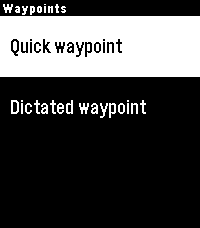
Stop & save requires confirmation. On Pebble Time 2, Waypoints opens a submenu with
Quick waypoint and Dictated waypoint. Quick waypoint immediately saves a point named
Pebble waypoint; dictation uses the confirmed transcription. Pebble Round 2 provides a direct
Add waypoint action for the quick waypoint.
Heart rate
Current heart rate is part of Locus telemetry and can be placed on an activity page for either
supported watch. Pebble Time 2 can also send its own raw sensor samples in the other direction,
from the watch to Locus, when forwarding is enabled under General settings.
If the Pebble Time 2 sensor is unavailable, the watch briefly reports Heart rate unavailable and sends no watch-originated samples. If sampling starts but produces no valid reading, it reports No heart rate. In either case, Locus telemetry—including a heart rate supplied by another sensor—continues unchanged. Pebble Round 2 does not offer watch-to-Locus forwarding.
See the Heart rate overview for the two directions at a glance and Heart-rate status for the corresponding Android Bridge diagnostics.
Watch Settings
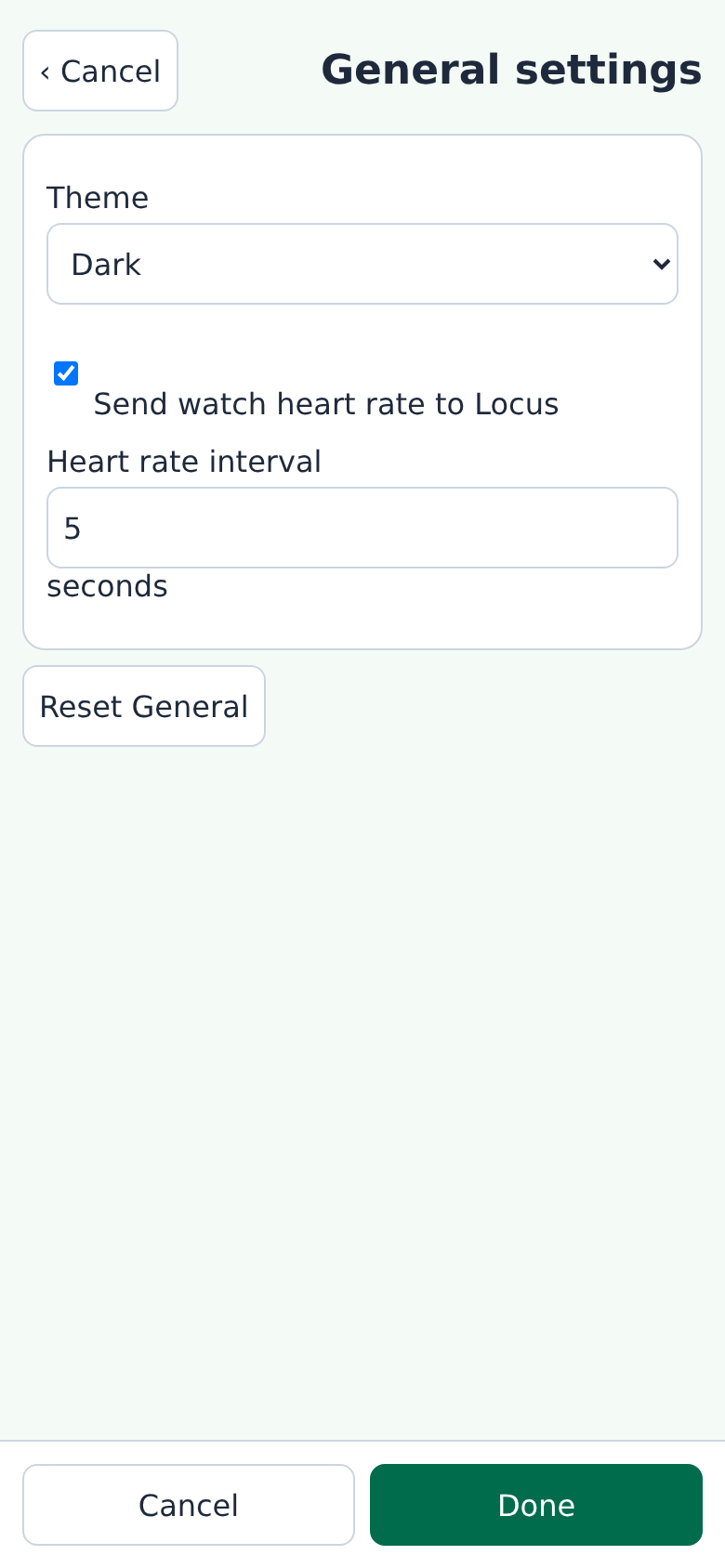
Open Watch Settings in the Pebble App. The overview lists detected Locus activities alphabetically and shows the enabled-page count for each. A notice says whether the catalog was just updated or comes from the saved cache. A separate General settings row appears above the activity list.
General settings
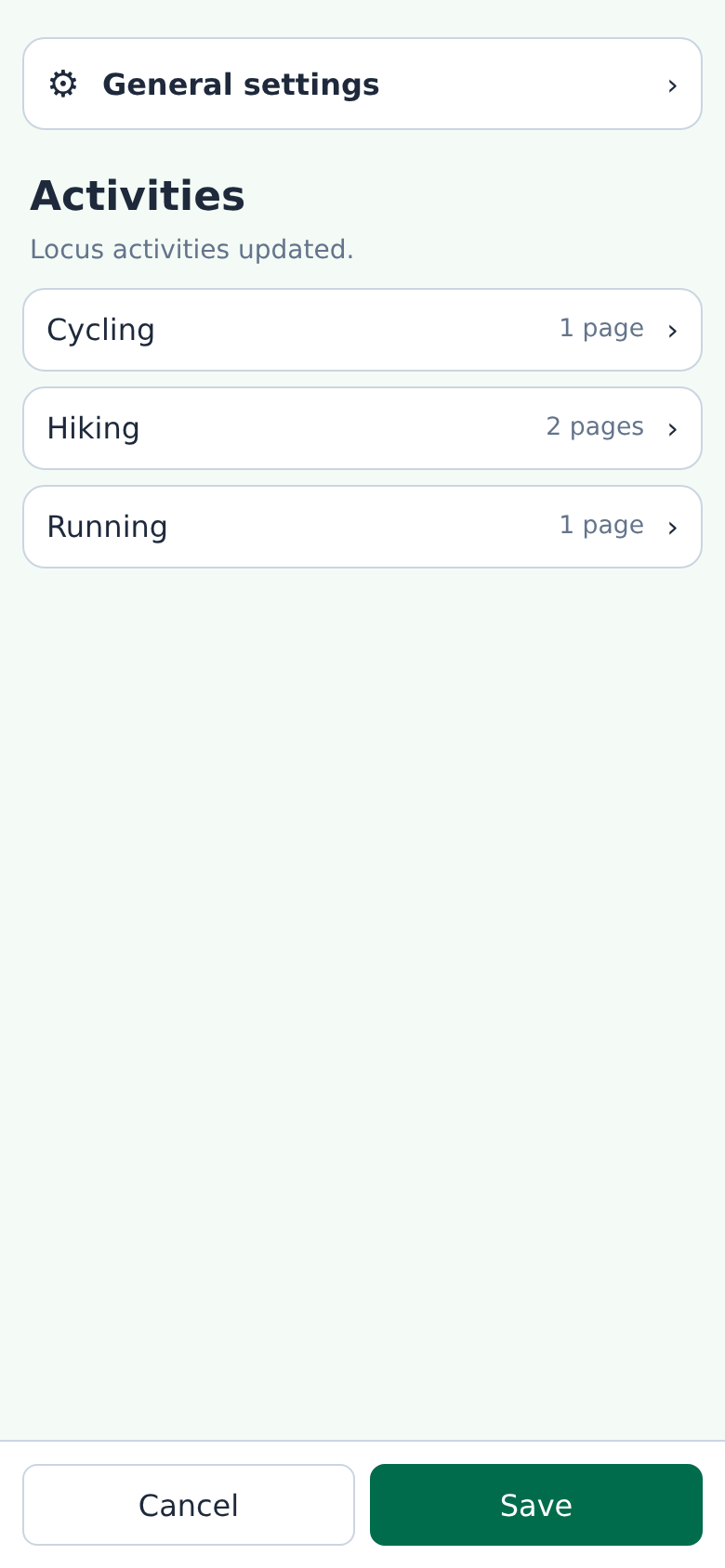
General settings contains the watch’s light or dark theme. On Pebble Time 2 it also contains Send watch heart rate to Locus and the Heart rate interval. Forwarding is off by default. The interval accepts whole seconds from 1 through 60 and defaults to 5 seconds. These heart-rate controls are not shown for Pebble Round 2 because that watch cannot forward sensor samples.
Forwarding is active only while Locus is recording and remains best effort because Locus does not acknowledge the sensor interface. See Heart rate for sensor-unavailable behavior and Heart rate for the distinction between displaying Locus heart rate and sending watch heart rate.
Editing an activity
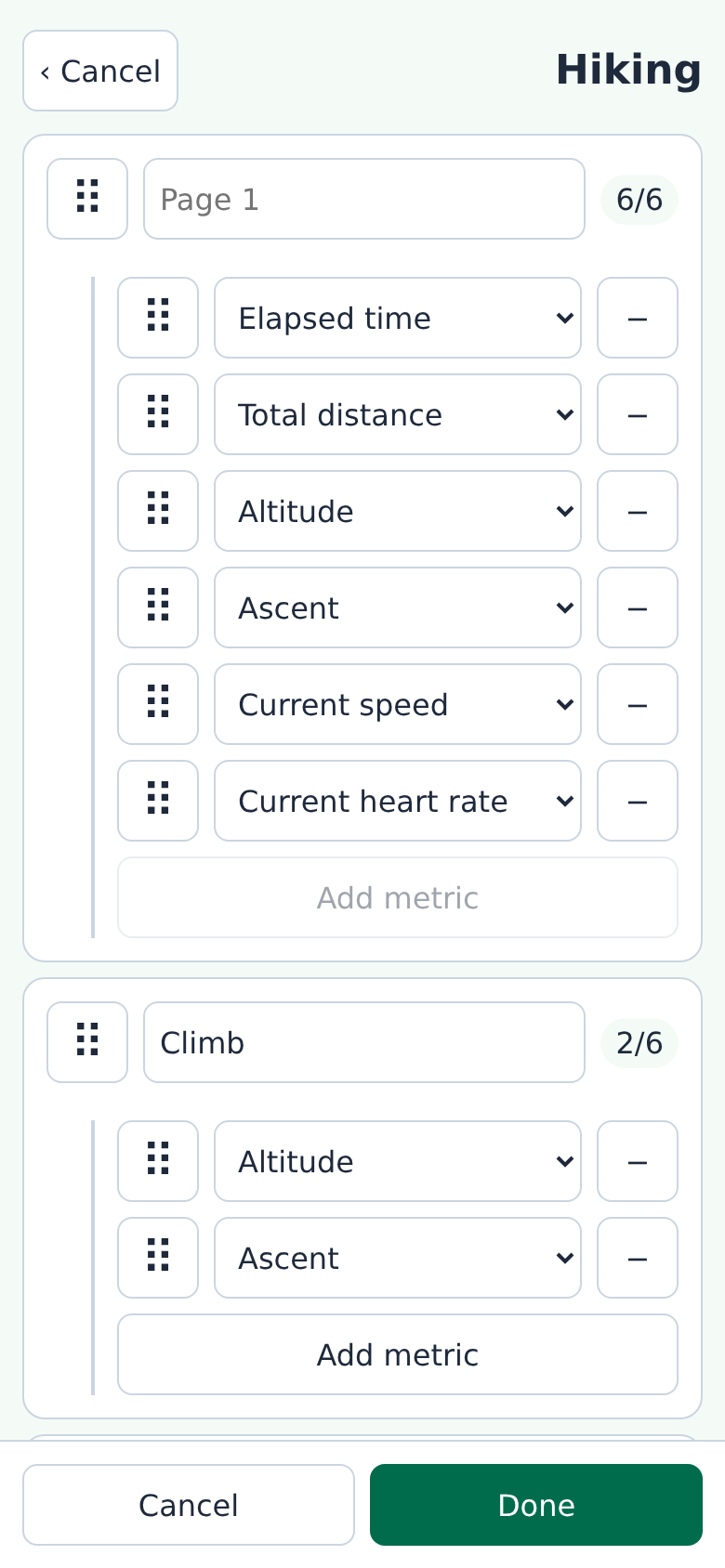
Select an activity to edit its four ordered page slots. The Locus activity name is read-only. An
active page has a custom-name field, a 1/6 through 6/6 metric counter, and ordered metric
rows. Metrics are indented beneath the page with a vertical guide. Leave the name blank for a
localized Page N name. Display names may repeat.
An inactive slot shows Inactive page and 0/6. Adding its first metric activates it.
Removing the last metric deactivates a page and preserves its hidden custom name, but at least one
page must stay active. Metrics are unique within a page but may repeat on different pages. A full
6/6 page keeps Add metric visible but disabled.
Six-dot handles drag page slots and metrics. A full page cannot accept another metric, but it does not interrupt a drag to a later page. The editor scrolls when a dragged item approaches the top or bottom edge.
Tap a six-dot handle without dragging to open its movement menu. Page menus provide Move up and Move down. Metric menus provide movement within the current page and append-to-page actions for the other slots. Full destinations and pages already containing that metric stay visible with an explanation but cannot be selected. The menu stays open for repeated adjustments.
For keyboard or switch access, focus a six-dot handle and press Space or Enter to pick up the item. Use Up and Down to move it within or between pages, then press Space or Enter again to drop it. Escape cancels the move. Invalid destinations are identified without changing the draft.
Save, cancel, and reset
Done applies an activity or General settings screen to the main unsaved draft. Cancel on a subpage discards only that screen’s changes. Press Save on the overview to send the complete draft to the watch, or Cancel there to close Watch Settings without saving.
Activity reset restores that activity’s heuristic first page and three inactive slots. General reset restores the dark theme, disables watch-to-Locus heart-rate forwarding, and returns its interval to five seconds. The two reset actions do not affect one another. Leaving or resetting an activity also clears transient movement menus, picked-up items, and messages.